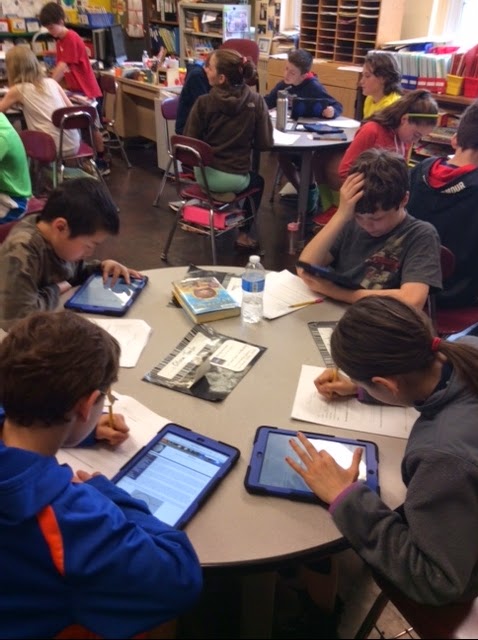
Day 2 of iPad pilot teachers teaching Dale Street teachers about how we are using ipads in our classrooms. The goal was for teachers to walk away with tangible lessons that they could use even with just one iPad. Going forward, we are excited to do this more often next year!
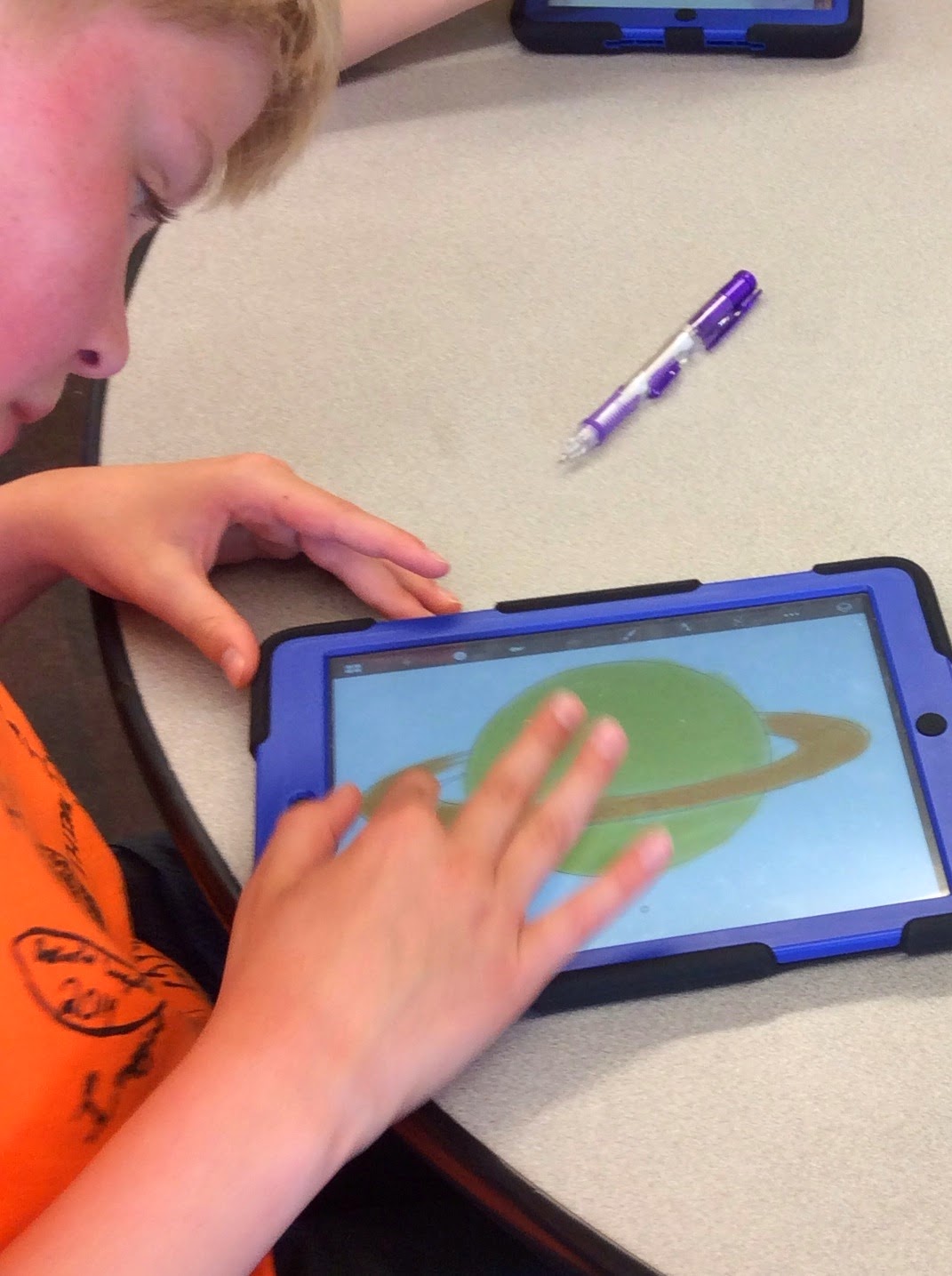
Students in Mrs. Lowerre's class worked very hard to create their planet tours using the apps SketchBookX and Explain Everything. The skills involved in creating a project like this are many. From researching current information about each planet, summarizing that research it into a scrip by determining the importance and interest of each fact , adding artistic drawings based on real NASA photos and then making it somewhat entertaining so everyone will want to watch and learn. This project is a great example of how we enhanced our learning by using iPads.
I wanted to try something new this week that had a lasting effect with my students by connecting our use on the iPads with the nightly homework assignments. Here is one way we accomplished this... all in a 4 day week!
MATH
Task: create a video/ lesson explaining how to solve a problem using the metric conversion system
Apps: explain everything or Notability
Time: 2 periods of 40 minutes
Results: here is a remarkable example of how one student demonstrated his knowledge in several ways...
Next steps: students had a note taking worksheet that corresponded to the video/ lesson which they completed as they watched all posted lessons and chose one to take notes on. The students brought the notes back to school where we were able to have a conversation not only about converting with metric measurement, but also about what they liked about this assignment/ what could have went better.
In their words:
Positives: "I really liked this homework... I even showed my sister one of the videos!"
Negatives:
"I wish we could have watched everyone's lessons, but then we probably wouldn't have slept."
My reflections/ take away points:
As the assignment took longer than I had planned, I quickly chose 4 lessons to post. It turns out that one of the lessons had an incorrect answer that I didn't catch in time. We turned this into a teachable moment as this morning my students and I were able to talk about this particular problem and how it should have been solved. It was a quick informal assessment for me as well to check in and see who picked up on the error, versus who took it at face value without knowing it was wrong. These were the same students who needed/got extra reinforcement today during our math centers.
I added an optional assignment... to post a positive complimentary comment as a way to explore blogging possibilities. Luckily I get the comment notifications sent to my phone because there was one comment that was not something that I wanted displayed for the world to see (very innocent about one student's not being as detailed as other lessons)... It was truly a perfect constructive critique, which to this students's credit, is something we are working on during peer editing. However, during our homework check in today, without getting specific, it gave me a great spring board for expectations and looking at good models for what is acceptable on a classroom message board.
I loved this lesson. My students are grasping concepts like metric conversion so deeply... I honestly feel like I understand how their brains need to learn concepts as I watch them work through these projects. My next task is how to manage a similar assignment with a one-iPad classroom so that I can do this more often...
Students in Mrs. Lowerre's science class are beginning an exciting planet project. Each student will create their own video tour of the solar system.
The first step was all about research. One of the exciting things about using the ipads was that the students could easily access research sites and then compare and contrast website information with the information from their science textbook. The end result was finding the most current facts and pictures of the planets.
After the research step was completed the students quickly moved into the drawing phase. Using the drawing app Sketchbook Express, students enjoyed
re-creating each planet. There are many drawing apps for kids but we chose to use Sketchbook Express because it allows students to create more sophisticated, realistic art. Students needed some time to learn the app but as they worked with it's many features their drawings became more detailed and true to the pictures we researched from NASA.
After all our drawings are done students will use their original scripts to create their final product, Stay tuned for a planet tour coming to a blog near your!
This week we used the iPads in a lot of different ways. Our skills and knowledge are expanding which is making it easier to layer our learning. We continue to use Today's Meet in reading and QR codes in math but we added two apps this week and combined them to produce one project.
What is Writer's Hat and Book Creator? Writer's Hat is a simple app that generates ideas. It can be used to inspire creative writing, oral fluency or just imaginative thinking. Book Creator is an app that puts your writing into a book format. Once the story is typed, students can add illustrations and pictures and even record themselves reading their own story.
The Project: I was amazed at how much the students loved Writer's Hat. It is a great app to use when you only have one iPad (it does cost 0.99). I was able to take my iPad around to each of the six tables in my classroom and the students took turns pressing the who, what, when, or where label to reveal the essence of their story. Students were then given class time to write and conference with me as the writing process progressed. The next day when we had a class set of iPads students then took their story and put it into a book format using Book Creator. They added illustrations either by drawing them or downloading pictures. When all was finished students recorded themselves reading their own stories.
Reflections: What did you think about Writer's Hat?
~ I liked it because it challenges you to write about a topic you normally wouldn't have. Aiden
~ I liked it because if you couldn't think of anything to write about it would help give you ideas. Charles
~ I thought it was creative but challenging Grace
~ I though it was really fun because you could make interesting stories. Madison
~ I thought is was really cool. Tristan
Task: Use explain everything to present learned information in a video format with a voice recording. We have used Explain Everything to share learned Geometry terms, practice Math open responses, and begin sharing our Science animal research. What is Explain Everything? Explain everything is a screencasting app. It is far superior to educreations in that it has the capability to add a variety of different forms of multimedia. Students create different slides to present their information and then record their movement through the slides, voice-over, and additions to slides in the form of a video. What I like: I just LOVE learning about new apps with my classroom. It is so refreshing to learn something new all together as a team. Having their teacher on the same playing field gives them new opportunities to discover things on their own, assist their classmates, and teach their teachers. They get so much satisfaction out of being able to teach me new things and I absolutely love it! The level of engagement within the classroom is hard to miss.
NEXT STOP: Completing our Animal Adaptations Final Project on this program! Stay tuned for updates! :)
Here is an example video of a light Explain Everything trial we were doing with their geometric terms:
On days when our grade level counterpart has a class set of iPads, our cohort came up with a system to allow for another class to get the 6 extra iPads... rather than let them collect dust!
Pros/ how we implemented this:
- I was able to run learning centers and stations using QR codes and Notability... I saw that iPads allowed for self-correcting, collaboration, reinforcement, critical thinking, engagement, and more when I used them in this format
- A review in math was more productive as there were 6 stations with 6 different topics, small group instruction-- versus whole class, and students were able to help one another
- During reader's workshop we used Today's Meet in teams (versus individually)... I found that this made each students really think through what they were going to type rather than typing the first thing that came to mind. Students began asking questions that other groups would help answer using the internet to search for answers... it was amazing to see how resourceful they were with the world at their fingertips!
- My students that have special learning needs were able to use the iPads to take notes/ pictures of text using Notability during my Social Studies instruction Cons-
- None that came up... it is a bonus to get an additional day with these iPads, so no complaints here!
What is ShowMe? ShowMe is an interactive whiteboard app that allows you to record voice-over tutorials. It is a simple app for kids to use with some amazing results for learning. I wanted to try ShowMe because we had experienced some challenges with other whiteboard apps.
How we used it: The goal was to have a fun, stress free MCAS math review. I assigned 12 problems for the students to work. We then corrected those problems together and each student identified one problem that they worked incorrectly or had the most difficulty figuring out. Their assignment was to use ShowMe to create a voice over tutorial showing how to solve that problem accurately.
What went well: Students first experimented with the app and quickly learned it's many features. Then they began planning their steps for their tutorial. (This planning process would be the same process students would go through to plan an answer for an open response test question.) I was able to provide short help sessions with each student as they went through their work. I made many observations about how each student thought, organized and problem solved. I was able to provide mini lessons to each student based on their needs. It became a very powerful teaching tool. As the students became more comfortable with the app, they went from just writing the problem to color coding the steps. Students began to re-record their problem and make improvements. Of course each time they re-recorded they were practicing a math problem that they had identified as difficult for them. What a great review! Most students re-recorded their work at least 7 times by choice and had a great time doing it.
The best thing about ShowME is that you can create a class account for saving your tutorials. Each student was easily able to upload their tutorials to that account. We then are able to share them and begin to create a library of math tutorials for later use.
Challenges: We had three challenges. One was that some students struggled with writing numbers using their fingers. We are hoping to have a stylus to offer to those students next time. A huge challenge was trying to find a quiet place to record. Space in general is at a minimum at our school but quiet space is even harder to find. Students were creative and they discovered nooks and crannies to record in. We are hoping that ear buds with microphones are in our future. Finally, time is a huge challenge. Only 6 students completely finished their tutorials within the time we had access to the iPads. We will have to wait several days before the entire class can finish their work but overall what a great way to review for MCAS!
Task: Revolve through all 6 math stations and complete at least five problems of student's choice from each table. Record all student work in each student's individual work packet. Self monitor math success by checking answers with QR codes and reworking any incorrect problems.
What are QR codes? QR codes are bar codes that are created as links. Devices can scan these codes using a QR Reader and are then directed to a webpage. This eliminates the need to type in a URL. In this case, each QR code brought the students to the answer to the math problem they were working on.
Why I like QR codes: This situation allows students to take ownership over their learning by removing the need to check their work with me. They check to see if their work was correct by scanning the code for the answer and then use their own monitoring to find their mistakes.
Task: Use one iPad per book club to work together creating a map of the main character's traits.
What is Popplet? Popplet is a mind mapping app that allows students to create webs to link together their ideas, pictures, or drawings.
Why I like Popplet: Popplet has an easy to use format that allows students to create and edit their information webs extremely easily. The app allows the ability to take pictures, insert text, or draw. Things I dislike: We do not have the ability on the free version to save projects and then come back and edit them. Students must complete their work in one sitting and then export their final project because it is possible that another class may want to use this app the next day.
Student reflections: "Using one iPad for a group of students helped us to join forces and work together as a team." "We were able to split up our assignment into equal parts so that everyone had a chance with the iPad while the others helped. We got to work together easily while still using iPads."
Task: Create a 30 second Tellagami to present students' previously completed book projects to each other. What is Tellagami? Tellagami is a program that allows students to create an avatar that will then speak for 30 seconds with whatever they choose to have them say. Why I like Tellagami: I like using Tellagami for these situations because, due to the time limit, students have to think about the most important information they wish to share. This causes them to really assess and choose the most important details about their book and present it to the class. I like to see their critical thinking in this matter and they way they continue to edit and rework what they wish to convey. Things I dislike: When the videos are exported they are in a HD format that didn't allow us to play them on the projector for everyone to see. Students can share their Tellagami on the projector when in preview mode on the app or individually on the iPads with each other.
Sarah's avatar shared her book project while Sarah stood close by with her project. :)
Thursday was our first full day using the iPads and we began with an angle scavenger hunt using Google Drive and Skitch.
Procedural Objectives:
Students will explore Skitch as a tool to find and document angles in their physical environment.
They will use the tools within Skitch to highlight the found angles and label them accordingly.
Students will create "Angle Hunt" folders within their Google Drive accounts and be able to upload their Skitch images into their "Angle Hunt" folders.
Students will use the iPad to create a document within their "Angle Hunt" folder in Google Drive to write a reflection on their experience with Skitch as a tool in Math.
Students will share their entire folders with me.
Students will use a protractor to measure their found angles on the screen.
Reflection:
Overall, this lesson went great! Using Skitch and Google Drive made it so easy to focus on the actual Math curriculum because these apps are so user-friendly and have minimal steps that students need to follow to access the uploading, drawing and image capturing tools. I was so impressed by student's ability to navigate Skitch and independently learn its tools and tricks. When I introduced Skitch to the class I gave them a very basic run-down; only sharing how to use it to take images, use the marker to draw/write over your image, and upload the image to Google Drive. Many of my students figured out how to use the other tools within Skitch as well as manipulate the marker tool for different color and size options. Students also quickly figured out that they needed to coordinate their image uploads in order to not overload the wi-fi. The one piece of this lesson that I would alter for next time is procedure #6. We used physical protractors for this step and I would love to find a way to measure these angles using an app. Many student reflections commented on this step as being a bit tricky.
My title sums up our day with the iPads...
Mrs. Lowerre and class inspired us to work with the iPads for the whole day-- integrating them into our normal routines to enhance what we are normally working on. TODAY'S MEET website
On Tuesday and Wednesday my students were taught (essentially) the same lesson during our Reader's Workshop time with reading specialist Mrs. Callahan. She is reading the book The Riddle of Penncroft Farm as a read aloud while students think about specific reading skills. On Tuesday students were responding via raising hands and waiting to be called on. At 12:00 pm, one student called out, "When do we need to stop to get ready for recess?"
Fast forward 24 hours... same instructions, book, teacher, time of day-- add in one change... ipads and connecting to Today'sMeet.com to respond as Mrs. Callahan read. At 12:15 (our exact recess time) Mrs. Callahan said, "Only 20 more seconds... finish up."
Amongst the groans and disappointed sounds, my favorite quote was, "What!?" in disbelief that the lesson was ending.
Here's the link to our transcript: http://today.io/nq2N
Sophia liked this lesson because, "I liked talking about reading on the iPad because the teachers could see what we actually wrote and responded to us right away."
Matt also liked it because, "You are doing school work, but it's fun, like yesterday we got to type the same things we write on paper and it shows up on a board and to me that was really fun and plus it is a good way to make sure everyone is working." EDUCREATIONS video Assignment: create a video similar to how we use the LearnZillion site in math workshop Snafus: students who did not finish the project could not save & continue later... the video saved as it, students are still learning how to record the projects as they go-- but many still need guidance with this, creating a video took longer than I anticipated-- this worked out fine for today as I had allowed for extra time, but going forward, it is good evidence for what to expect if I do this again Positives to take away: students really understand the difficult concept of converting measurements more deeply than if I taught it/ gave worksheets on the topic, students got to share videos with other classmates which led to students teaching students
The proof is in the pudding... check out these video clips: -students reflect on why they liked this/ what they learned:
When I asked Lucas why this was an effective lesson he wrote, "Making slides on Educreations was more fun than doing problems in a notebook and it helped because in the slides we needed to explain our answers which made things click easier for me."
Today was a big day in our class. We were able to use the iPads for the entire day instead of just one or two periods. Could we successfully incorporate the iPads into each subject?
It was the Monday after spring break so what a great time to share our vacation adventures by using Popplet. With just a short overview the students were able to easily maneuver through the mind mapping app. I couldn't believe how focused the kids were as they created their Popplet story. The process of saving and sharing proved to be a bit challenging but we succeeded and now students are ready to use Popplet for many different assignments.
In Math we introduced QR codes. All students made a card to take home that has the QR code for our class web site. The card will provide quick easy access for both students and parents.
As we tried to move forward with our QR code lesson, we hit a snag. Our QR reader wasn't allowing us access to the codes. There didn't seem to be a quick solution so we will have to finish our QR math review another day.
Our next lesson was one of the kids favorite. This lesson was all about taking three very special photos and then connecting them into a unique story. I let the kids have some thinking time before we went outside to the playground. Many were concerned about how they were going to connect three random pictures. After a few minutes outside all concern was gone as planning, thinking, observing and creating took over. After all picture decisions were made, the students saved their photos to their google doc account and now have the week to complete their story. The room was buzzing with all their interesting ideas and I can't wait to read what they will come up with.
Reading time was fantastic as we used TodaysMeet to share our thoughts about a read aloud Mrs. Callahan (our reading specialist ) was sharing. At important sections Mrs. Callahan would stop and ask a question or ask the students to share their specific thoughts. Mrs. Callahan was able to comment about certain ideas the students had posted. I was amazed at how closely they listened to the story and how much thought they put into their answers. Everyone participated.
We had a busy day but we needed to do one more thing. Using the app "Pages" each student wrote one paragraph reflecting on our first entire day using iPads. The following is one reflection of the day by Eva.
My iPad Experience
By Eva
My experience with the iPads today was great! I loved using Popplet and I wished we got more time to finish. I love that you can use Popplet to make mind maps. I would have preferred to do our explorer mind maps on Popplet. I could have worked on it all day. I loved how we got to take pictures and tie it into writing. I learned that different objects can turn into something cool. Without using the iPads we would never have been able to do this lesson. I also felt that by using the iPads I payed extra attention. I didn't zone out at all today. Today was very enjoyable. I can't wait to do it again!
Thursday, April 17, 2014... Overall, this was a very successful lesson... especially when you consider that we worked on this the day before vacation!
The students got to review 6 major focus areas in math while working in small groups and having access to all of the center materials via QR codes. The students were able to solve the problems at each center and check immediately to see if they got the right answer or not. I was very impressed with how quickly they were able to figure out the QR codes at each center.
One glitch- one of the centers that I used had a website that the students could not access from the iPad for some reason. I had an extra backup center that I was able to substitute in its place, though.
The best part of our day... students teaching teachers!
Mrs. Lowerre and Ms. Pastore were able to sneak in for a quick tutorial on how to use the QR codes.
My students have completed their iPad Permit tests using Socrative, filmed and directed thoughtful and fun skits for their independently designed "Top 10 iPad Rules for Room 5" and we are ready to dive right in!
For our first experience with using the iPads as a curriculum tool I wanted to focus on ELA. We are currently reading Tuck Everlasting which has a heavy theme that promotes deep thinking on the part of students. However, as we all know it can be a challenge to push all students to participate in discussion and feel comfortable doing so. So, that's where Today's Meet came in…
Students navigated their way to the Today's Meet link I had previously created for this chapter and we began by discussing the format and collaboratively came up with some ground rules. I was really impressed by how much they already knew about character limits for venues such as this or twitter! The most important ground rule we set was about posting appropriate and related content on Today's Meet. For our first time using Today's Meet I provided students with a lot of structure, allowing them to only "say" thinking that is related to the prompts I had provided them. We began by jig sawing preview vocabulary for the chapter we were going to read that day. Students would be posting sentences full of context clues to hint at the words meaning. This is an activity we do often in class (with pencil and paper) so it was helpful that they already knew the drill for our first time using Today's Meet. Groups shared their vocabulary and we were all able to follow along and discuss each contribution on the feed.
Next we practiced our "iPads down" skills! I anticipated a challenge in asking students (especially of this age) to transition from using the iPad to putting it to sleep and turning it over to read a chapter of our book. However, they were GREAT about the transition and were seemingly really motivated to follow the iPad rules they had previously been a part of creating.
We went back to Today's Meet after reading chapter 18, which has an awesome cliff hanger, and students were given time to independently post, or "say" as Today's Meet calls it, their predictions for chapter 19.
It was an incredible experience to watch how motivated my students were to post their thinking on Today's Meet and I loved watching them read and react to their peer's predictions on the feed. Overall, I found using this in the classroom as a discussion tool to be valuable. After the lesson, we debriefed as a class about the pros and cons of using Today's Meet and I received the following feedback from my kiddos :
it allowed students who are shy to share their ideas
when we shared our vocabulary sentences, if I couldn't hear the person it was OK because I could see what they wrote
typing on the iPad is the opposite of what you teach us to do on computers and we need to "peck" more so the outside of our hands don't hit the return button and accidents post things we aren't ready to post ( I hadn't though of this, great point!)
only having a certain amount of characters to use makes you think more about what you are going to write